
Project routes
A route is a permanent, readable address of a bot, for example call-steering. Channels, the Transfer to flow block and the Gateway API can address a bot by its route instead of by the project's unique identifier. The route decides which project answers, so you can release a new version of a bot as a new project and switch traffic to it in one step, without reconfiguring channels, integrations or other bots.
Routes are available from version 267.
Live and candidate
Each route points to up to two projects of your Organization:
- Live — the project that serves production traffic,
- Candidate — the project that serves test traffic, for example a new version waiting to be released.
Both pointers are optional and may point to the same project. A route without a live project does not answer regular traffic. A route without a candidate project sends test traffic to the live project.
Managing routes
Routes are listed in the Projects module, on the Routes tab. Each route shows its live and candidate project; click the route name to copy it.
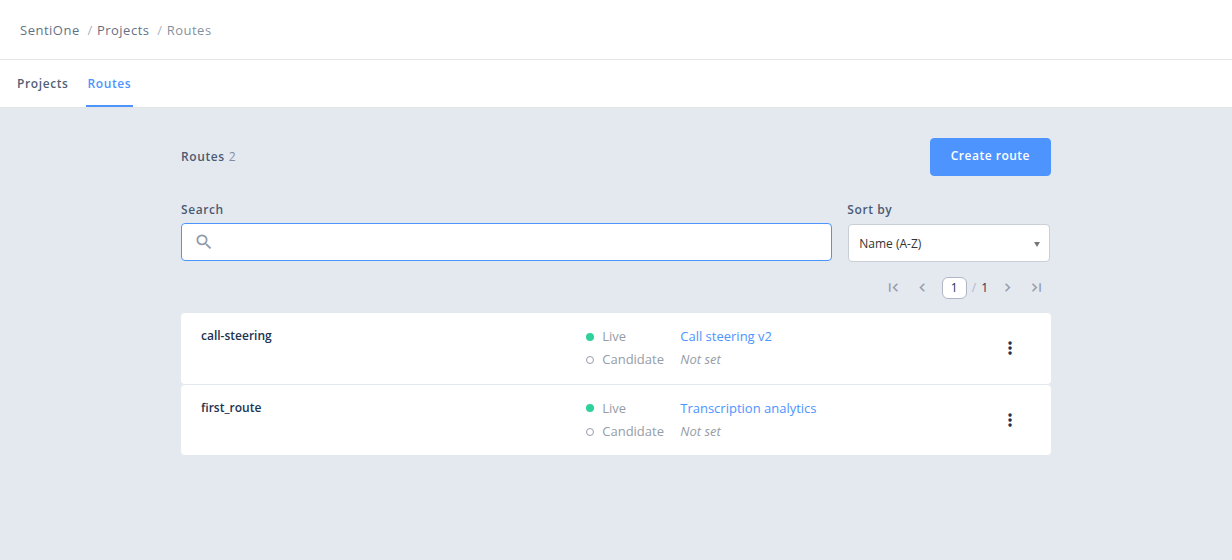
Creating a route
- Go to the Routes tab and click Create route.
- Enter the Route name. It may contain lowercase letters, digits, hyphens and underscores, for example
call-steering, and is unique within your Organization. - Optionally choose the Live project and the Candidate project.
- Click Create.
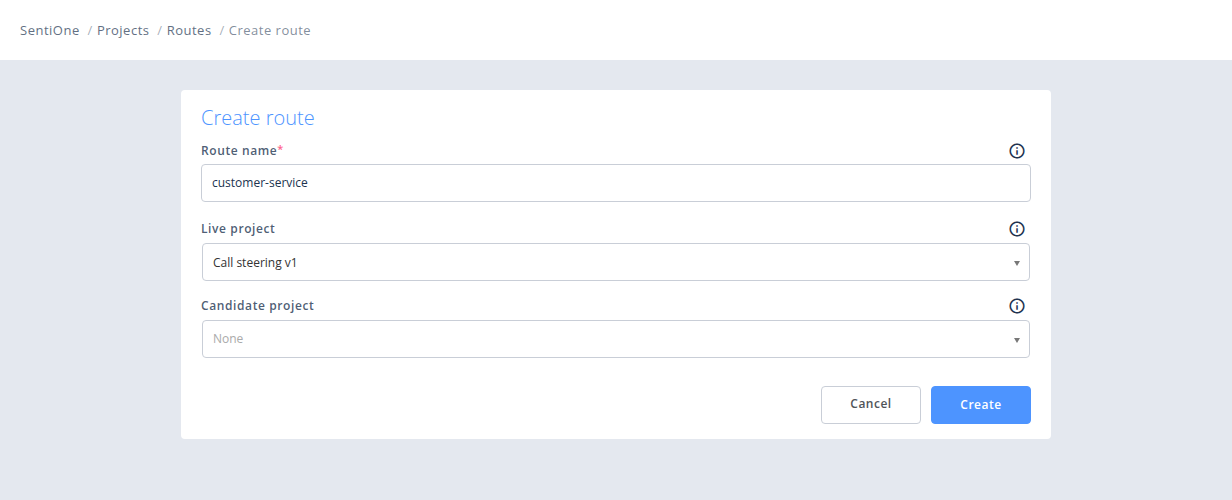
The route name cannot be changed later. Routes cannot be deleted from the user interface.
Switching projects
To point a route to another project, choose Change live project or Change candidate project from the route's options (three dots on the right), select the project and save. Choose None to clear the pointer.
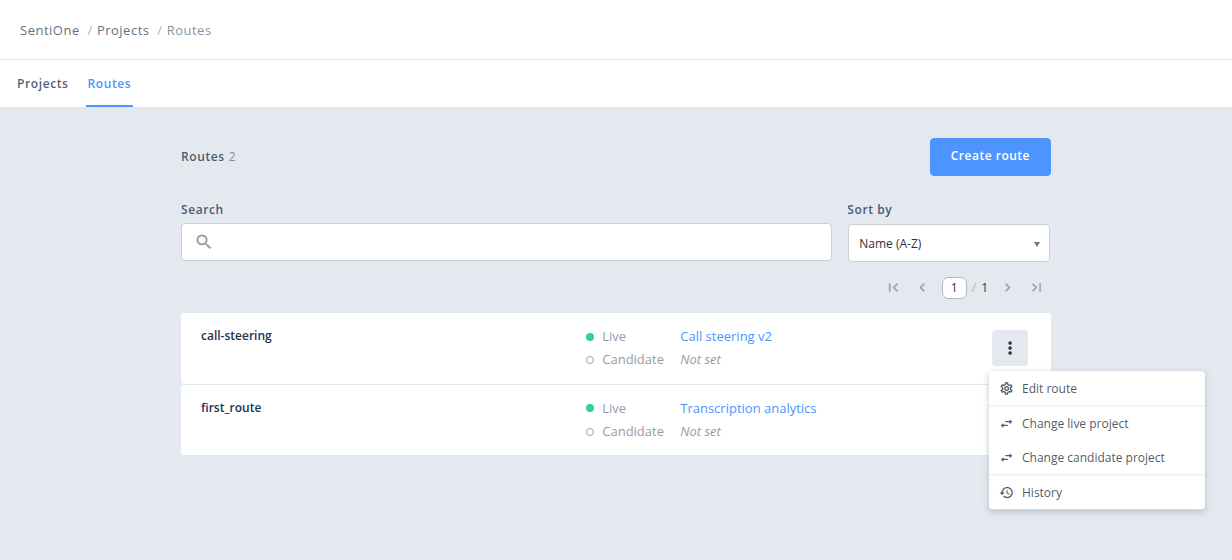
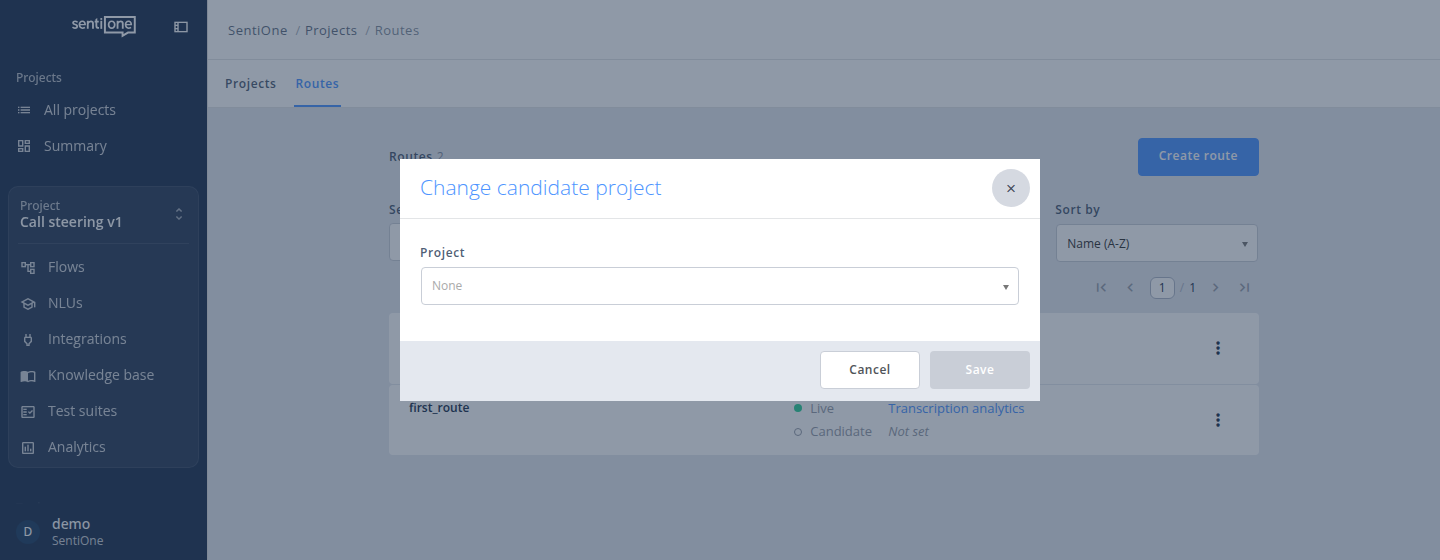
You can also change both projects at once with Edit route; you will be asked to confirm the change before it is applied.
A change takes effect immediately for new conversations. Conversations already in progress continue with the project they started with until they end.
Route history
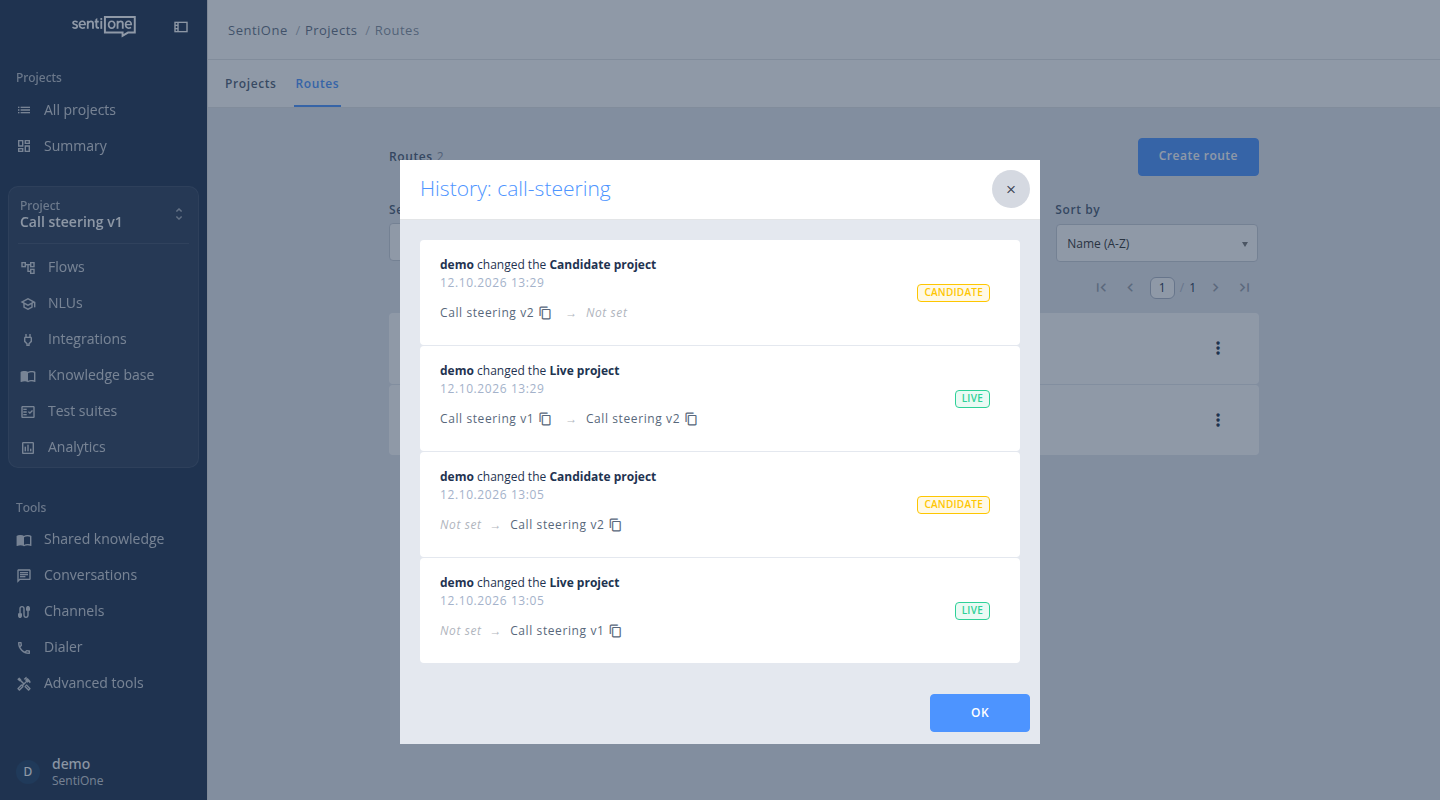
Choose History from the route's options to see every change of the live and candidate project: who made it, when, and the previous and the new project. Changes made through the Public API are shown without a user. A project deleted after the change is marked as deleted.
Permissions
Every user can see routes and their history. Creating routes and changing their projects requires the permission to manage projects.
Using a route
Channels
A Web chat, Mobile chat iOS or Mobile chat Android channel can be pinned to a route instead of a project. Choose the route in the channel's target selector and then the variant:
- Live — the channel serves the route's live project,
- Candidate — the channel serves the route's candidate project, or the live project when no candidate is set.
The channel list shows which project the channel is Currently routed to. See Configuration.
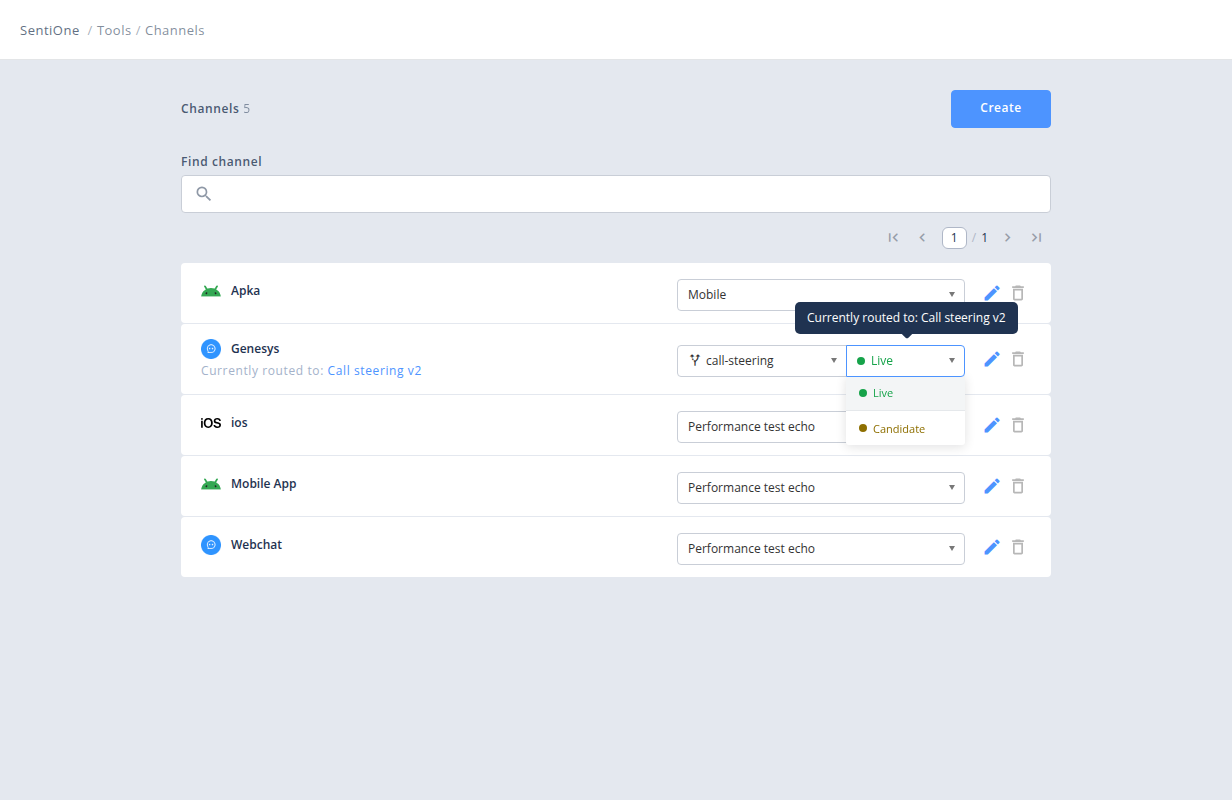
Keep a separate test channel pinned to the candidate variant of the same route. It always leads to the current candidate, no matter how many versions you release.
Transfer to flow
The Transfer to flow block can target a route instead of a project. The transfer goes to the project the route points to at that moment, so releasing a new version of the target bot requires no changes in the bots that transfer to it. See Transfer to Flow.
Gateway API
Integrations calling the Gateway API can address a bot by route name, the organization identifier and the variant. See Gateway.
Public API
Routes can be listed, created and switched through the Public API — for example from a CI/CD pipeline that releases bots between environments. The Public API identifies projects by their UUIDs.
Test conversations (candidate mode)
A conversation started through the candidate variant of a route — a test channel or a Gateway request with variant: candidate — stays in candidate mode until it ends:
- every Transfer to flow block that targets a route goes to that route's candidate project, or to its live project when no candidate is set,
- a conversation started through the live variant always stays on live projects.
This lets you test a new version of an internal bot, one that users reach only by a transfer from another bot, through the usual test channel: the conversation enters through the live version of the entry bot and is transferred to the candidate version of the internal bot.
Once a conversation is transferred to a route, it stays with the same project for the rest of the conversation.
Transfers to a route work only in conversations started by route. The Chat Tester starts conversations by project, so it does not know whether the live or the candidate project of the target route should be used. To test a transfer to a route, use a channel pinned to the route.
Releasing a new version of a bot
- Import the new version as a new project — the current live project keeps serving traffic untouched.
- Set it as the route's candidate project.
- Test it through a channel pinned to the candidate variant.
- When ready, set the same project as the route's live project. New conversations go to the new version; ongoing conversations finish on the old one.
- To roll back, set the previous project as the live project again. Keep the previous project until you are sure you will not need it.
A project used by a route cannot be deleted. Point the route to another project first.
Limitations
- Only Web chat and Mobile chat channels can be pinned to a route.
- Routes are not included in the project export. A Transfer to flow block keeps the route name, so after importing a project to another environment, a route with the same name must exist there before the flows can be published.
- When a Transfer to flow block targets a specific flow of a route, that flow must exist in both the live and the candidate project of the route; otherwise the flow cannot be published.
Updated 20 days ago